Mentor guide
You teach people to deploy on your cloud. This page is for you, the mentor. Trainees have their own page: Training labs. The plan itself, its quotas and its lifetime are on Manage plans.
Enrol a trainee
A trainee works in an organization of their own, on the Training plan.
- Ask them to sign up on your cloud. Signing up creates an organization for them.
- If they already have an organization with real customers in it, ask them to create a second one for the course. Training quotas are small and the sandbox may close; their real work should not sit behind that fence.
- Open
/admin/organizations, find their organization, click Change plan and pick Training.
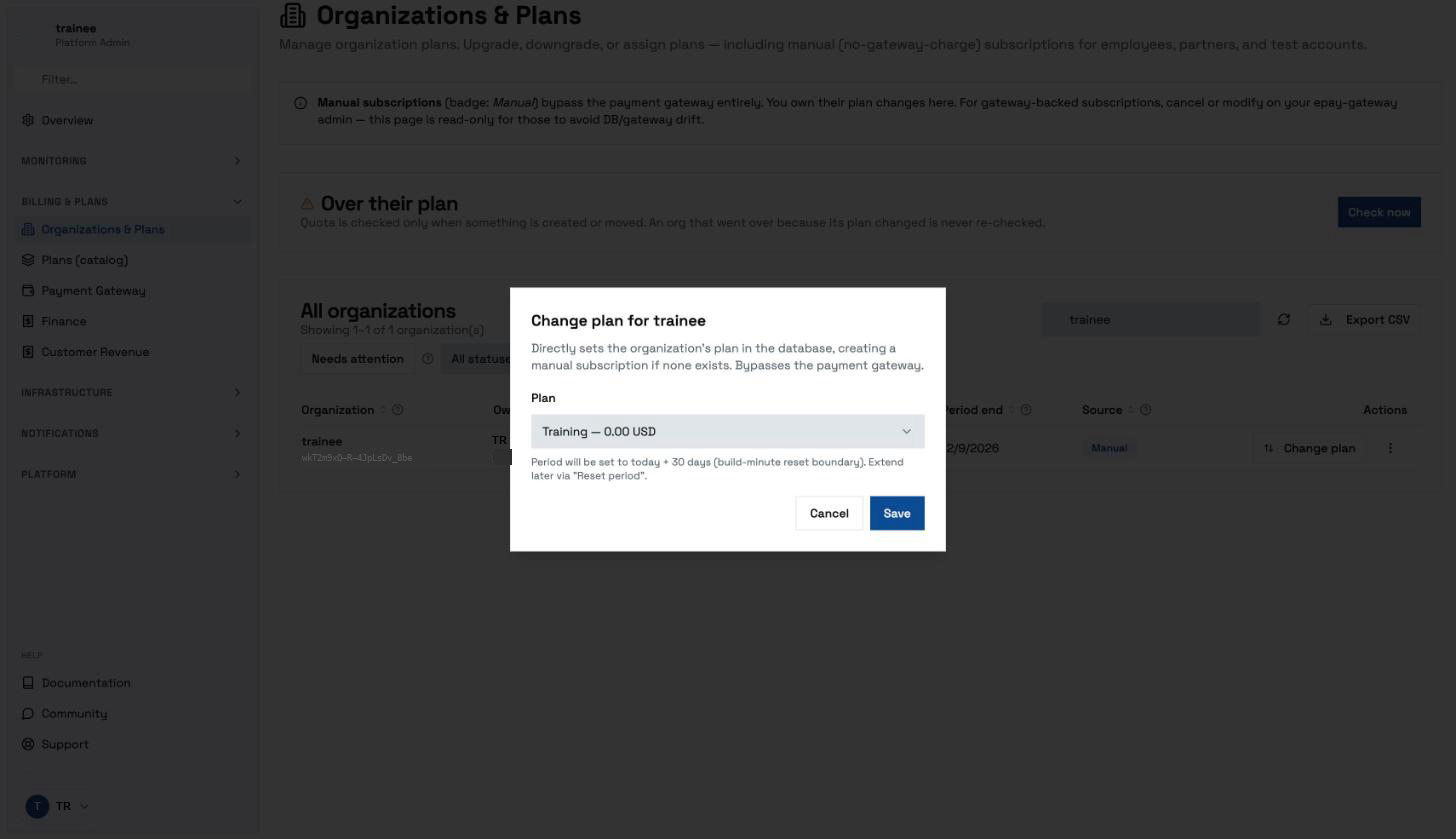
From that moment they see a Training item in their dashboard sidebar. Nothing is charged.
A training organization has one member. You cannot be invited into it. To see what a trainee built, impersonate them: on any dashboard page, click the round button at the bottom right, search their email and click Impersonate. You then see their dashboard as they do. Click Stop impersonating in the bar at the bottom when you are done.
Let trainees book time with you
You do not sit in a room waiting. You publish a booking page, give trainees the link, and they pick a slot on it. Google Calendar's Appointment schedule does this and hosts the page for you.
Do it on a computer. The Google Calendar mobile apps cannot create an appointment schedule.
- In Google Calendar, click Create → Appointment schedule.
- Name the slot after what the trainee is booking, not after your school.
Mentoring session — <your course name>tells them what it is; your school's name alone does not. - Set the slot length, the hours you are free, how far ahead a trainee may book, and how much notice you need.
- Turn on Google Meet if you want every booking to carry its own video link in the confirmation mail. Leave it off to meet in the lesson's own live room instead, which a trainee opens with Go live in the lesson.
- Open some availability before you give the link out. With none open, a trainee lands on an empty calendar that reads "No availability during these days", and it looks broken.
- Copy the booking page link at the end. It is a
calendar.app.google/…address. That is what you give your trainees.
The booking page shows every time in the visitor's own time zone. A mentor in Canada and a trainee in Conakry each read their own clock, so nobody converts anything by hand.
A free personal account allows a single appointment schedule. A Google Workspace account allows as many as you like.
The five labs
Each lab is checked against what the trainee actually built on your cloud, not against what they say. The trainee presses Check my lab on their Training page and gets Passed or Not yet, with one sentence saying what is missing.
| Lab | Passes when | "Not yet" usually means |
|---|---|---|
| Deploy your first app | an application has a finished deployment and is running | nothing deployed yet, or the app stopped after deploying |
| Put a domain with HTTPS on an app | a domain is attached with HTTPS on and a certificate chosen | HTTPS is off, or the certificate provider is None |
| Run a database backup | a database backup has completed at least once | a backup is set up but has never run, or no backup at all |
| Deploy a template by chatting with the agent | the AI agent deployed a template for them | they deployed the template by hand, not through the chat |
| Deploy a stack from the template catalogue | a stack on their cloud comes from the catalogue | they built a stack by hand and named it after a template |
The order of the course does not matter to the check. A trainee can pass lab 3 before lab 2.
When a check fails although the work was done
The check reads your cloud's records. It cannot see:
- A page that is up but a deployment that never finished. Ask the trainee to open Deployments on the app and wait for Done.
- A domain they typed into a browser but never attached. The domain must be on the app's Domains tab.
- A backup they ran somewhere else. Only backups configured on the database's Backups tab count.
- A template deployed from the Templates page when the lab asked for the agent. The two labs are different on purpose. The agent lab needs the chat.
If the trainee did the right thing and the check still says Not yet, impersonate them and look at the same tab the check reads. For the domain, backup, agent and stack labs the sentence under Not yet names it; for the first lab it is Deployments on the application.
Give more time, or close
The Training plan can have a Sandbox lifetime in days. If yours has one, each sandbox closes that many days after it was put on the plan. The trainee gets an email 7 days before and 1 day before.
- More time:
/admin/organizations, the row's ⋮ menu, Reset period. The clock starts again from today.
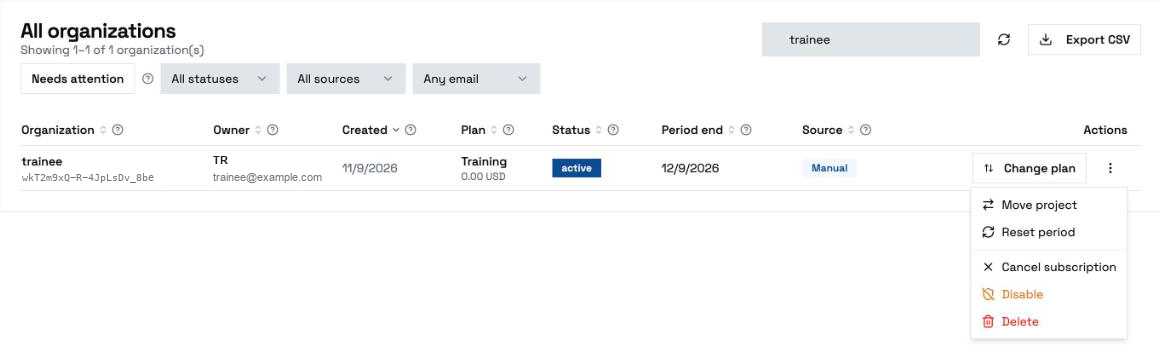
- At closing: the organization is disabled. The trainee is locked out of the dashboard; anything they deployed keeps serving.
- Re-open by hand: enable the organization again. It then stays open for good.
- Course over: change the plan to a normal one if they stay, or leave it to close. Do not use Cancel subscription to end a course: the Training item disappears from the trainee's sidebar while the rest of their dashboard keeps working, which looks like a bug to them.
The Academy side
Check my lab tells a trainee whether their work passes. It does not mark the lesson. The trainee then submits the lab in the Academy, the Academy asks your cloud again, and the lesson is marked from there.
A lab that does not pass writes nothing to the Academy, so a trainee can fix it and submit again. If a lesson still shows undone after a pass, mark it by hand in the Academy.