Billing Notifications
Configure notifications to keep you and your users informed about usage and billing events. Set up alerts to avoid unexpected limits or payment issues.
Notification Events
Kuploy can notify about these billing-related events:
| Event | Description | When It Fires |
|---|---|---|
| Usage Warning | Approaching resource limits | At 80% of any limit |
| Usage Limit | Reached a resource limit | At 100% of any limit |
| Build Minutes Warning | Running low on build minutes | At 80% of monthly minutes |
| Build Minutes Limit | Build minutes exhausted | At 100% (and 110% hard limit) |
| Payment Failed | Subscription payment failed | After failed charge attempt |
| Payment Succeeded | A subscription payment cleared | After a successful charge — a first payment, a plan change, a renewal, or a past-due one that has just been paid. The customer gets the payment receipt |
| Subscription Changed | A plan went live | When a payment confirmation activates the plan — a first payment, a plan change, or a past-due plan that has just been paid. The mail names the new plan, but it never says whether the change went up or down: the plan it replaced is no longer on record by then. A payment that arrives as a cleared invoice sends the payment receipt instead, not this one |
| Support: New Ticket | A customer opened a support ticket | When an end-user creates a ticket |
| Support: Customer Reply | A customer replied to a ticket | When an end-user posts on an open ticket (admin replies do not fire this) |
| Status: Incident Created | You published a new status-page incident | When an admin publishes an incident via /admin/status |
| Status: Incident Updated | You posted an update on an incident | Each investigating / identified / monitoring update |
| Status: Incident Resolved | You resolved an incident | Once, when the final update marks the incident resolved |
| Platform Status Changed | Upstream licensing hub overall state changed | When the central platform transitions (e.g. operational → major outage, or recovers) |
| Domain Renewal Due | A domain is approaching expiry — purchased here or imported | Ahead of expiry, at each reminder threshold — links to the customer's Domains page, where they pick a payment method and renew |
Five events are on by default: Usage Warning, Usage Limit, Payment Failed, Payment Succeeded and Subscription Changed. Every other event is off, so no channel starts receiving a new class of notification on its own — opt in per channel.
Support: New Ticket, Support: Customer Reply and Platform Status Changed reach only channels you have marked as the operator's. Status: Incident … is offered to customers only if you allow it.
Both switches live on one card, Who hears about an incident, under Admin → Status. Until you mark a channel there, the three support and status events reach nobody. Status: Incident … is the exception: if you have allowed customers to subscribe, those still reach every customer channel subscribed to them.
Mark a channel before subscribing it to any of these. An unmarked channel is refused them, and the form below carries the event checkboxes with it, so ticking one as you create the channel fails — create it, mark it, then come back and turn the events on.
Status Page has the rules and what each switch does. They are documented there and not here, because a copy of them here is a copy that goes stale on its own.
The Domain Renewal Due reminder is always emailed to the organization owner automatically (via platform SMTP) — the per-channel toggle above only adds extra destinations (e.g. Slack or a shared inbox). You don't need a channel just to receive renewal reminders.
Supported Channels
Send notifications to any of these channels:
| Channel | Best For |
|---|---|
| Personal alerts, receipts | |
| Slack | Team notifications |
| Discord | Community/team alerts |
| Telegram | Mobile notifications |
| Gotify | Self-hosted notifications |
| Ntfy | Simple push notifications |
| Lark | Enterprise teams using Lark |
| Custom Webhook | Integration with any service |
Setting Up Notifications
Step 1: Access Notification Settings
- Go to your Organization Settings
- Click Notifications in the sidebar
- Click Add Channel
Step 2: Choose a Channel Type
Select the notification channel that works best for your workflow.
Step 3: Configure the Channel
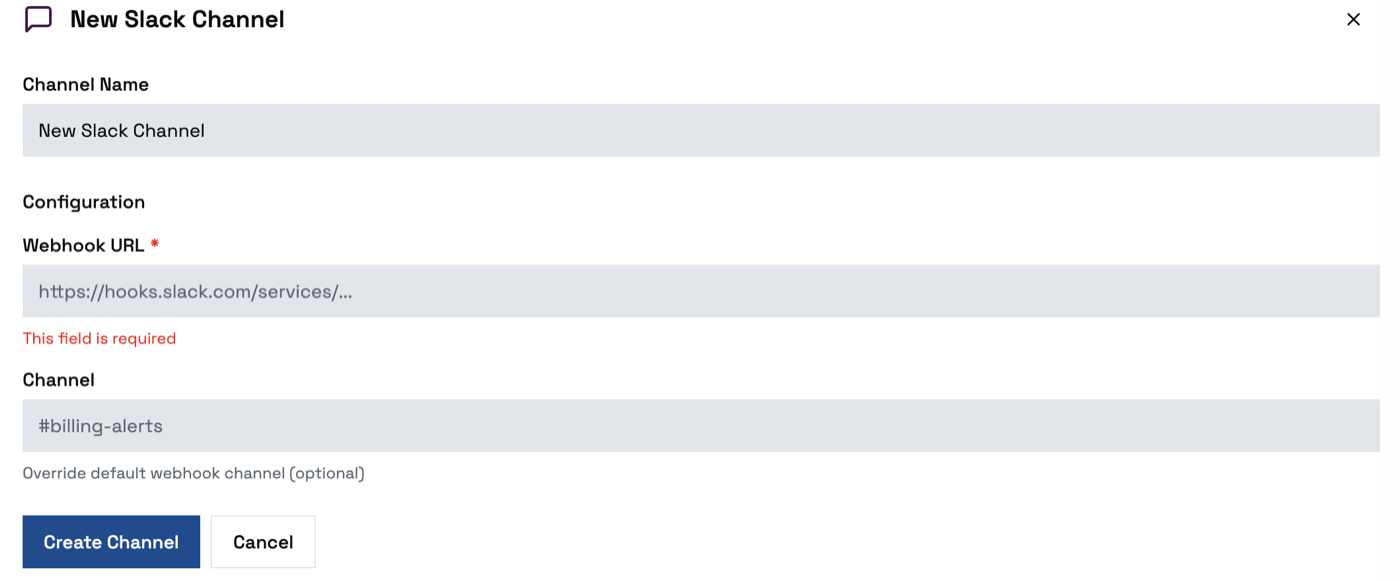
Each channel has specific configuration requirements, and the form checks them before it submits — a missing webhook URL is flagged inline (This field is required) rather than after a round-trip. What counts as required depends on the channel: Slack, Discord and Lark need a webhook URL; Telegram a bot token and a chat ID; Email needs recipients, plus full server credentials unless it uses the platform's default SMTP.
Channel Configuration
Email
Send notifications to one or more email addresses.
Configuration:
Email Addresses: alerts@yourcompany.com, admin@yourcompany.com
- Separate multiple addresses with commas
- Uses your organization's configured SMTP or platform default
Use a distribution list or shared inbox for team visibility.
Slack
Send notifications to a Slack channel via incoming webhook.
Setup:
- Go to Slack Apps
- Create a new app or select an existing one
- Enable Incoming Webhooks
- Click Add New Webhook to Workspace
- Select the channel to post to
- Copy the webhook URL
Configuration:
Webhook URL: https://hooks.slack.com/services/TXXXX/BXXXX/xxxxxxxxxxxx
Example notification:
🔔 Usage Warning - Acme Corp
Build minutes at 82% (410/500)
Billing period ends in 8 days
Discord
Send notifications to a Discord channel via webhook.
Setup:
- Open Discord and go to your server
- Right-click the channel → Edit Channel
- Go to Integrations → Webhooks
- Click New Webhook
- Copy the webhook URL
Configuration:
Webhook URL: https://discord.com/api/webhooks/XXXXX/XXXXX
Telegram
Send notifications to a Telegram chat or group.
Setup:
- Message @BotFather on Telegram
- Send
/newbotand follow the prompts - Copy the bot token provided
- Add the bot to your chat or group
- Get your Chat ID:
- For personal chats: message the bot, then visit
https://api.telegram.org/bot<TOKEN>/getUpdates - For groups: add @RawDataBot temporarily to see the chat ID
- For personal chats: message the bot, then visit
Configuration:
Bot Token: 123456789:ABCdefGHIjklMNOpqrsTUVwxyz
Chat ID: -1001234567890
Group chat IDs are negative numbers. Personal chat IDs are positive.
Gotify
Self-hosted notification server for privacy-conscious users.
Setup:
- Deploy Gotify on your server
- Create an application in Gotify
- Copy the application token
Configuration:
Server URL: https://gotify.yourserver.com
App Token: AxxxxxxxxxxxxxxxxP
Ntfy
Simple HTTP-based pub/sub notifications.
Setup:
- Use ntfy.sh or self-host
- Choose a topic name (keep it private/random)
Configuration:
Server URL: https://ntfy.sh
Topic: your-random-topic-name
Subscribe on your phone:
# Subscribe to topic
ntfy subscribe your-random-topic-name
Lark (Feishu)
For teams using Lark/Feishu.
Setup:
- Open Lark and go to your group
- Click settings → Bots → Add Bot
- Select Custom Bot
- Copy the webhook URL
Configuration:
Webhook URL: https://open.larksuite.com/open-apis/bot/v2/hook/xxxxx
Custom Webhook
Integrate with any service that accepts HTTP webhooks.
Configuration:
URL: https://your-service.com/webhook
Method: POST
Headers: {"Authorization": "Bearer xxx"} (optional)
Payload format:
{
  "event": "usage_warning",
  "organization": {
    "id": "org_xxx",
    "name": "Acme Corp"
  },
  "data": {
    "resource": "build_minutes",
    "current": 410,
    "limit": 500,
    "percent": 82
  },
  "timestamp": "2024-01-15T10:30:00Z"
}
Selecting Events
After configuring a channel, choose which events trigger notifications:
- In the channel configuration, find Events
- Check the events you want to receive:
- ☑️ Usage Warning
- ☑️ Usage Limit
- ☑️ Payment Failed
- ☑️ Payment Succeeded
- ☑️ Subscription Changed
Create separate channels for different audiences:
- Slack #dev-alerts: Usage warnings (for developers)
- Email to billing@: Payment events (for finance team)
Testing Notifications
After setting up a channel:
- Click Test next to the channel
- A test notification is sent immediately
- Verify you received it in the target channel
If the test fails:
- Check your webhook URL or credentials
- Ensure firewalls allow outbound connections
- Verify bot permissions (for Slack/Discord/Telegram)
Managing Channels
Edit a Channel
- Go to Notifications
- Click on the channel to edit
- Update configuration
- Click Save
Disable a Channel
- Go to Notifications
- Click the toggle to disable
- Channel remains configured but won't send notifications
Delete a Channel
- Go to Notifications
- Click Delete on the channel
- Confirm deletion
Notification Frequency
To prevent notification fatigue, Kuploy implements cooldown periods:
| Event Type | Cooldown |
|---|---|
| Usage Warning | 24 hours |
| Usage Limit | 12 hours |
| Payment Failed | Per payment attempt |
| Subscription Changed | Immediate |
You won't receive repeated warnings for the same issue within the cooldown period.
Best Practices
For Small Teams
- Single Slack channel for all billing alerts
- Email backup for payment failures
For Larger Organizations
- Separate channels by severity (warnings vs. critical)
- Route payment issues to finance team
- Use custom webhook for ticketing integration
For Solo Developers
- Telegram for mobile alerts
- Email for payment receipts
Troubleshooting
Not receiving notifications
- Check channel configuration: Test the channel to verify it works
- Check event selection: Ensure the event is enabled for that channel
- Check cooldown: Recent duplicate events are suppressed
- Check spam folders: For email notifications
Slack/Discord webhook errors
- Webhook URLs expire if the integration is removed
- Regenerate the webhook and update your configuration
Telegram bot not responding
- Ensure the bot is added to the chat
- Verify the chat ID is correct (negative for groups)
- Check that the bot has permission to post
Example Setup
Here's a recommended setup for a small team:
Channel 1: Slack (#billing-alerts)
- Events: All events
- Purpose: Team visibility
Channel 2: Email (finance@company.com)
- Events: Payment Failed, Subscription Changed
- Purpose: Finance team awareness
Channel 3: Telegram (CTO)
- Events: Usage Limit, Payment Failed
- Purpose: Critical alerts to leadership