Payment Gateway
The Payment Gateway is the single surface kuploy-cloud uses to accept payments. It rolls mobile money (Orange Money, MTN MoMo, KULU), cards (Visa / Mastercard / Amex via Stripe), and Apple/Google Pay / Link under one configuration. Available on the Business plan and above.
The Payment Gateway feature covers both:
- How your organizations pay you for their instance subscriptions. Every rail — Stripe card checkout and mobile money alike — flows through the same gateway.
- A composable "Payment Gateway" service your organizations can add to their projects so their own apps can accept payments.
Platform billing from you to kuploy.app stays on Stripe (direct, not through the gateway) and is not affected.
Since this release, kuploy-cloud no longer manages Stripe keys directly. Your Stripe secret key and webhook signing secret live on a Provider record inside your epay-gateway deployment, not in kuploy-cloud's /admin/stripe page. That page is kept for transitional tenants and will be retired.
Before you start
- Your tenant subscription must be on the Business plan or higher at kuploy.app. Lower plans don't see the Payment Gateway admin pages or the service type.
- Decide which operating mode fits you — managed (zero-config, platform-hosted) or BYO (bring your own epay-gateway deployment for data sovereignty). Details below.
What ePay is, how you get a merchant, which currencies your rails settle and what your customers see at checkout are covered in ePay. Its full merchant + admin reference — architecture, provider plugins, management API, subscription engine, DevOps — lives at docs.epay.kuploy.app (sign-in required). Both modes route through the same gateway surface; only who operates it changes.
kuploy-cloud never holds funds. See Where the money lands.
Two modes
You pick managed or BYO from a single toggle in Admin → Payment Gateway. Swap any time.
| Managed | BYO | |
|---|---|---|
| Who runs the gateway | Platform (us) | You |
| Credentials | Provisioned automatically via license sync | You paste them into the admin UI |
| Webhook wiring | Automatic | Automatic (on save) |
| Data sovereignty | Shared infrastructure | Fully on your side |
| Typical fit | Most tenants | Compliance / regulated industries |
Managed is the default for new Business+ tenants. BYO is an opt-out when you need payment credentials to live on your own infrastructure.
Step 1 — Pick a mode in the admin UI
- Sign in to your kuploy-cloud dashboard as a platform admin.
- Open Admin → Payment Gateway.
- At the top you'll see a Mode card. Enable managed mode or leave it off for BYO — one click either way.
Managed mode
Click Enable managed. On the next license sync — hourly by default, or straight away if you click Retry Sync on the Admin dashboard — the platform provisions a merchant on the shared gateway on your behalf and your admin page switches to a read-only view labelled "Connected via managed-mode (license sync)". Nothing else to set up.
Once provisioned, the platform emails the account owner an invite to the merchant portal — the gateway back-office where you can review transactions, settlement, and key rotation for your own merchant. Open it to set a password, then use the Open merchant portal link that appears on this page to sign in any time. Lost the email or never received it? Click Resend portal invite.
To turn it off later: Disable managed. The managed credentials clear on the next sync; your tenant's active org-facing payment services stay live during a brief grace period, then are torn down.
BYO mode
Leave the Mode card in its default (managed disabled) state. The credential form below the card becomes active. Fill in:
- Gateway URL — the public URL of your epay-gateway deployment (e.g.
https://pay.yourcompany.com). - Merchant Code — the tenant merchant identifier from the gateway's admin console.
- Admin API Key — a DB-backed API key minted on your gateway (see docs.epay.kuploy.app/admin/api-keys).
- Merchant Key — the HMAC secret used to sign webhooks.
Click Save Configuration. kuploy-cloud validates connectivity before persisting; bad URL or revoked key fails loudly. All secrets are stored encrypted.
You don't configure the webhook URL anywhere. On save (BYO) or first provision (managed), kuploy-cloud tells your gateway where to deliver events — the URL derives from your cloud's APP_URL and updates automatically if you change domains. The admin page shows the current value for audit.
Step 2 — Stripe webhooks (BYO only)
In managed mode this step is handled for you. In BYO mode, point your Stripe Dashboard webhook endpoint at your gateway, not at kuploy-cloud:
https://<your-gateway-host>/api/webhooks/stripe/<merchantCode>
The gateway verifies Stripe's signature, normalises the event, and relays it to kuploy-cloud. See the epay-gateway Stripe integration docs for the setup details.
What events land on your cloud
kuploy-cloud processes these events (same set both modes):
| Event | What kuploy-cloud does |
|---|---|
customer.subscription.created / updated | Upserts the org's subscription and syncs cluster quotas. |
customer.subscription.deleted | Cancels the subscription and falls back to your default plan. |
invoice.payment_succeeded | Clears a past-due status if the org was in dunning. |
invoice.payment_failed | Marks the org past-due so your dunning rules kick in. |
epay-gateway emits Stripe-shaped event payloads so the same downstream code paths handle both sources. The metadata.externalReference field ties each event back to the org inside your kuploy-cloud instance.
Step 3 — What your orgs see at checkout
Once either mode is live, your organizations get a Payment method picker on /account/billing. The list is driven by whatever payment rails your gateway has enabled — cards via Stripe, mobile money, anything the gateway supports — so new providers appear automatically as your platform adds them. No provider names are hard-coded anywhere in the cloud UI.
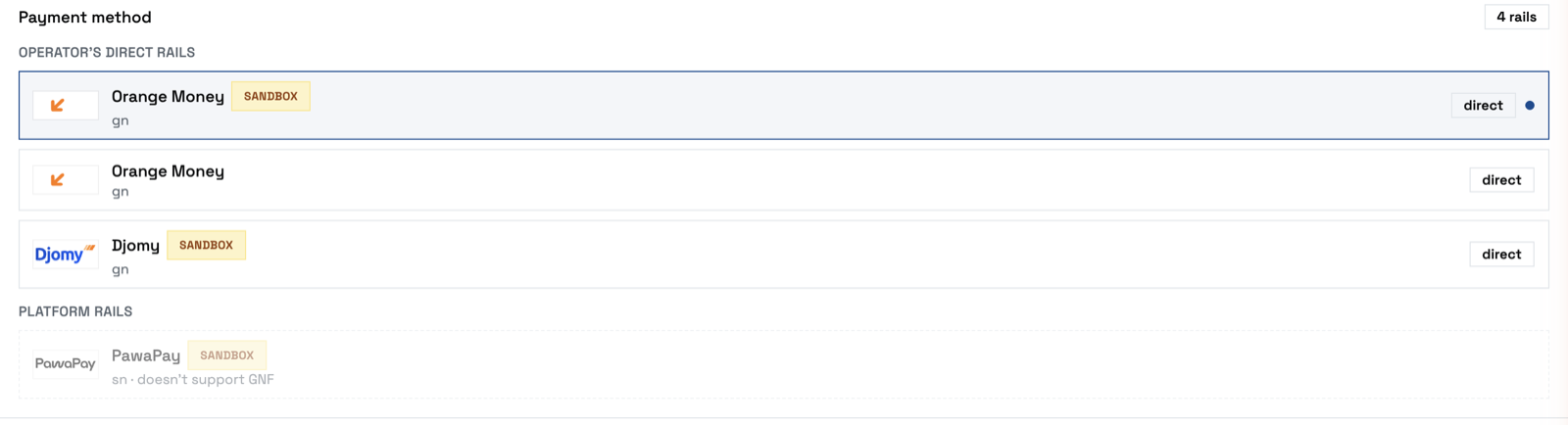
The picker groups rails by who collects the money: Operator's direct rails (your own provider contracts) above Platform rails (the gateway platform's), with a direct badge on the former. The grouping only appears when you have both kinds. Rails render with their provider brand and logo rather than the internal row name, and a Sandbox chip marks a test rail — worth knowing because a sandbox rail and a live rail for the same provider are otherwise identical in the list.
A rail that can't settle the currency being charged renders disabled with the reason (doesn't support GNF) instead of failing at the gateway; if none of them can, your customer sees a notice telling them to contact you.
Rails you haven't enabled are not shown at all, and that filtering happens in kuploy-cloud rather than at the gateway: the gateway still returns an inactive row, and your instance drops it before building the list. Practically, turning a rail off in your gateway's admin takes effect for your customers immediately — no kuploy-cloud release, no restart. The same is true of a rail owned by another merchant: it is never disclosed here, because it isn't payable through your merchant.
When an org confirms a plan change, their browser goes to the gateway's checkout counter — see What your customers see. The customer pays, the gateway fires a subscription event back to your cloud, and the org's plan flips to active.
See the developer guide for the composable Payment Gateway service for the end-to-end picture your org's developers get.
Finance — your payment book
Admin → Finance is a read-only view of the payments flowing through your own merchant on the gateway — the merchant that collects your orgs' subscription payments to you. It mirrors what you'd see on the gateway's own admin console, without leaving kuploy-cloud.
- Overview — totals (transactions, paid, failed, pending) over a recent window, paid volume per currency (mobile-money rails span GNF, XOF, USD, …), and the payment providers seen.
- Transactions — a filterable, paginated list (by provider and status); click any row for the full transaction detail.
The window is a count of the most recent transactions on your book (up to 200), not a calendar period.
Paid volume: what is actually yours
A payment succeeding on the gateway is not the same as money reaching you. A merchant can hold its own upstream agreement with a provider, in which case its payments settle straight into that merchant's account and the gateway deliberately leaves them out of platform settlement — paying them out to you would pay the money twice. Paid volume therefore splits each currency in two:
| Line | Meaning |
|---|---|
| platform | Money you receive and settle. This is your revenue. |
| processed, settled directly to merchant | Ran on a merchant-owned provider row. Real money, really processed on your gateway — but it went to that merchant, not to you. |
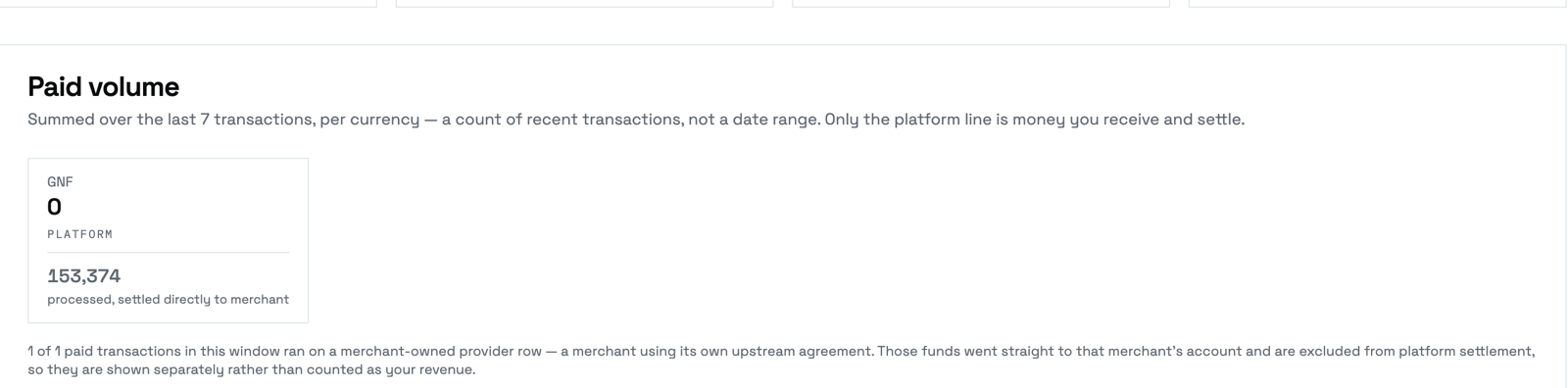
Earlier versions summed every paid transaction, which counted merchant-owned volume as yours. If your paid volume falls the first time you open this page after upgrading, nothing changed about the money — only about which part of it is correctly attributed to you. The older, larger number was the wrong one.
The split is decided per transaction by the owner of the provider row
recorded when the payment happened, not by the provider's name — the same rail
(om-webpay, say) can exist both as a platform row and as a merchant-owned one.
The value is snapshotted at the time of the transaction, so changing a provider's
ownership later never rewrites history.
A platform line reading 0 is normal on an instance whose own merchant has
no platform provider rows — every payment there runs on a merchant-owned row. It
means "none of this window's money was yours to settle", not that the page is
broken.
Two boundaries to be clear about:
- It shows only your own book. The gateway is a shared platform singleton hosting many tenants' merchants; the Finance views are scoped to your merchant code so you only ever see your own transactions.
- It does not show your orgs' books (Layer 3). When one of your organizations runs the composable Payment Gateway service, that org has its own merchant — its customers' payments settle to the org, not to you. Those transactions are the org's private book and are intentionally absent from your Finance view. To assist an org with a specific payment, use admin impersonation to view it in the org's own context.
Finance is gated the same way as the rest of payments: it appears when your kuploy.app license grants Payment Gateway and a gateway connection is configured. Refunds, cancellations, and any write actions stay on the gateway itself — Finance is view-only.
The composable "Payment Gateway" service
Your organizations can add a Payment Gateway service to their projects, the same way they add Applications, Databases, or Compose services. See the Payment Gateway developer guide for the end-user flow.
Each organization that uses the service gets its own merchant — separate payouts and reconciliation per org, so one org's revenue is never collapsed onto another's (or onto your own subscription merchant). The platform provisions and maintains these org merchants for you; you don't act per org.
Payment events for an org's merchant are delivered to your kuploy-cloud instance, signature-checked against that org's own key, and relayed on to the webhook URL the org configured in its service settings.
The per-org composable service is managed-mode only. In BYO mode you run a single merchant on your own gateway, which can't issue separate per-org payouts — so the "Payment Gateway" service type is unavailable to your orgs until you switch to managed. (Your own org→you subscription billing still works in both modes.)
Status & monitoring
Both kuploy.app and your kuploy-cloud dashboard expose a Payment Gateway row on their /status page:
- kuploy.app/status tracks the shared epay-gateway singleton. If it turns red, checkout is impaired for every Business+ tenant — not just yours.
- Your kuploy-cloud
/statusprobes the same gateway using your own merchant connection. It shows green only when your license grants Payment Gateway and your admin config passes a live connectivity check. Free/Pro tenants and tenants who haven't finished setup don't see the row at all.
Read the two together: if kuploy.app says the gateway is up but your own page says it's down, the problem is your configuration (wrong URL, revoked key) — start at Admin → Payment Gateway → Test Connection.
Switching, rotating, tearing down
- Switch managed ↔ BYO: flip the Mode card toggle. On switching to BYO, fill in your own gateway credentials. On switching to managed, wait one sync cycle for the platform to provision.
- Rotate BYO credentials: enter the new values and click Save. The old values are replaced atomically.
- Disable entirely: turn managed off and click Reset on the BYO form. The Payment Gateway UI disappears from your orgs' dashboards. Existing merchants on the gateway are soft-deleted (with a grace window for active subscriptions).
Changing your instance's URL
A managed merchant is pinned to the origin it was registered with — the
scheme and host your instance answered on at provisioning time. Move your
console to a different host and payments are rejected with a 400 naming the
origin the gateway expects, until the licence sync catches up.
That rejection is deliberate. The alternative is relaying money events to a host your instance no longer serves.
- A different path on the same origin is fine. Only the origin is pinned.
- It heals on the next sync — hourly by default, or straight away with Retry Sync on the Admin dashboard. Do that as part of the domain change rather than afterwards, and the window closes to nothing.
- BYO merchants are not pinned. A merchant you onboarded yourself through the gateway admin console is unaffected by this.
So when you move the console to a new domain, click Retry Sync immediately afterwards and take one test payment before you consider the move done.
Troubleshooting
- Mode card says "Managed mode — enabled" but credentials are missing — the provisioning call is pending or failed. Give it up to a minute; if it persists, your license plan may not grant Payment Gateway. Check Admin → License.
- Didn't get the merchant-portal invite email (managed mode) — check spam first (it comes from the platform's mail sender), then click Resend portal invite on Admin → Payment Gateway. The button re-sends whether or not a login already exists.
- "Not configured" in BYO mode — the save didn't land. Re-check the Gateway URL and Admin Key using Test Connection.
- Webhooks arrive but events look unprocessed — the signature check is strict. See the epay-gateway webhook signature docs for the HMAC formula.
- Payments suddenly 400 with an origin mismatch — your instance is answering on a host other than the one its managed merchant was registered with, usually right after a domain change. The error names the origin the gateway expects. Click Retry Sync on the Admin dashboard; see Changing your instance's URL.
- Orgs don't see a payment method at checkout — make sure at least one provider is enabled on your gateway. In managed mode the provider list is platform-managed; in BYO, configure providers in your gateway's admin console.
- "Payment Gateway" service can't be created — the feature is gated on the license feature flag, on the gateway being configured, and on managed mode being on (per-org merchants are managed-only). If you're in BYO mode, the service type won't be offered to your orgs.
Privacy & data boundaries
- BYO mode: payment credentials and merchant secrets never leave your kuploy-cloud instance (they live encrypted in your own database). Funds settle on accounts you registered with your providers directly.
- Managed mode: credentials are minted and held on the platform's infrastructure; your kuploy-cloud receives and stores the per-tenant merchant secret + a narrowly-scoped admin key that can only touch your own merchant (nothing broader). When your orgs use the composable service, each org's own merchant secret is also synced down and stored encrypted at rest, scoped to that org; it's used to verify that org's payment events before they're relayed to the org's app. A gateway-side key rotation self-heals on the next sync. Funds settle on accounts the platform admin has registered on the shared gateway's provider plugins, on your behalf.
- The platform reports only aggregate payment metrics back to kuploy.app on license sync: transaction count, total volume (in the gateway's base currency minor units), active merchant count, and the list of active provider names. No customer identifiers, amounts-per-transaction, or phone numbers are sent upstream.
- Disabling the Payment Gateway feature (downgrade, toggle off, or BYO reset) halts the aggregate reporting immediately.