Domain Administration
Manage subdomain provisioning, custom domain registration, and domain purchases for your kuploy-cloud platform.
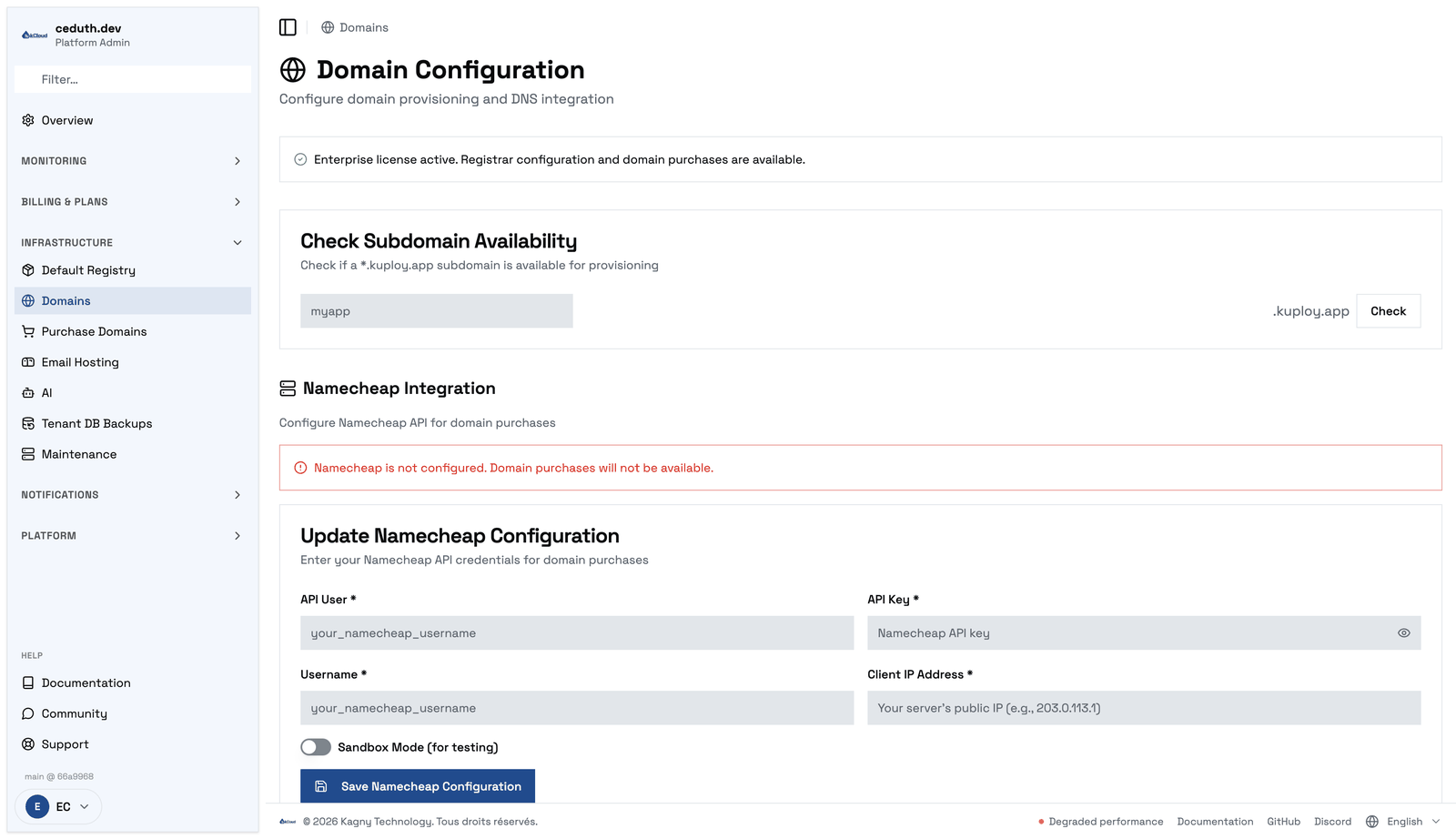
Subdomain Provisioning
Every kuploy-cloud instance can provision *.kuploy.app subdomains for its users' applications. Subdomains are managed through the kuploy.app licensing hub — your instance communicates with the Domain API automatically.
How It Works
- A user requests a subdomain (e.g.,
myapp) through the application UI - Your kuploy-cloud instance checks availability with kuploy.app
- If available, the subdomain is reserved and DNS is provisioned
- The subdomain (
myapp.kuploy.app) goes live instantly
Subdomain Limits
Subdomain allocation is controlled by your platform plan:
| Plan | Free Subdomains |
|---|---|
| Hobby | 1 |
| Starter | 2 |
| Growth | 5 |
| Business | 10 |
| Enterprise | Unlimited |
Subdomain Rules
- 3-63 characters
- Lowercase letters, numbers, and hyphens only
- Cannot start or end with a hyphen
- Must be unique across all Kuploy users
Reserved Names
The following subdomain names are reserved and cannot be used:
www, app, api, admin, mail, smtp, pop, imap, ftp, ssh,
ns1, ns2, dns, test, dev, staging, prod, production,
beta, alpha, status, help, support, docs, blog, cdn,
static, assets, media, images, img, dashboard, billing,
account, login, signup, register, auth, oauth, sso, kuploy
Custom Domain Management
Custom domains allow your users to attach their own domains (e.g., app.example.com) to their applications.
Requirements
- Starter plan or higher (custom domains are not available on the Hobby plan)
- DNS configuration by the end user (CNAME or A record)
Custom Domain Limits
| Plan | Custom Domains |
|---|---|
| Hobby | 0 |
| Starter | 3 |
| Growth | 10 |
| Business | 50 |
| Enterprise | Unlimited |
Wildcard DNS Setup
For platforms serving many applications, configure a wildcard DNS record pointing to your cluster's ingress IP:
*.yourdomain.com. A <your-ingress-ip>
This allows users to create subdomains of your domain (e.g., app1.yourdomain.com, app2.yourdomain.com) without individual DNS entries.
SSL Certificates
SSL certificates for custom domains are provisioned automatically via Let's Encrypt. Ensure:
- DNS records are properly configured before adding the domain
- Your ingress controller supports automatic certificate provisioning
- CAA records (if present) allow Let's Encrypt:
yourdomain.com. CAA 0 issue "letsencrypt.org"
Domain Purchasing
Domain purchasing allows your end users to search for, buy, and manage custom domains directly from the kuploy-cloud dashboard, without leaving your platform.
How It Works
- Users search for available domains on the landing page or My Domains dashboard page
- Available domains show badges and pricing
- Users on eligible plans can purchase domains through the checkout flow
- DNS records are automatically configured to point to your server
- Purchased domains can be assigned to applications immediately
Access Control
Domain purchasing uses a license-first, plan-fallback feature gate:
| Priority | Check | Description |
|---|---|---|
| 1st | Your platform plan | If your kuploy.app platform plan (Enterprise) grants domain purchase, every organization on your instance can buy domains — no per-org check needed. |
| 2nd (fallback) | The org's own plan | Checked only when the license doesn't grant it. Requires Domain purchase on the org's plan and an active (or trialing) subscription — a checkout that was started but never paid does not count. |
How it works in practice:
| Your platform plan | The org's plan | Result |
|---|---|---|
| Enterprise (domain purchase granted) | Any, even your free tier | Allowed — your license grants it platform-wide |
| Anything lower | A paid-up plan with Domain purchase on | Allowed — the plan fallback grants it |
| Anything lower | Anything else | Blocked — the org sees "Upgrade Required" |
This means you can either:
- Enable it platform-wide by holding an Enterprise platform plan
- Enable it per-plan by turning Domain purchase on for the plans you choose, at Admin → Plans
Your license's feature flags are read from durable storage, not from in-memory state, so the gate answers the same way immediately after a restart as it does hours later.
Purchasable Domain Limits
Each of your plans carries its own purchasable-domain limit, which you set at Admin → Plans alongside the plan's other quotas. A fresh install seeds a Free tier at 0 — nothing purchasable — so any allowance is one you grant deliberately.
Two ceilings apply on top: your own platform plan's purchasable-domain limit, and the fact that domain purchase is an Enterprise feature unless the org's plan grants it.
Landing Page Integration
When a domain registrar is configured, the landing page shows a domain search bar in the hero section across all landing page templates. Visitors (even unauthenticated) can search for domain availability:
- While the registrar status loads, a skeleton placeholder is shown to prevent layout shift
- Available domains display a green "Available" badge
- Clicking Buy or Sign Up to Buy takes users to sign-up (if not logged in) then the checkout page
- The search bar hides itself automatically if no registrar is configured
User Purchase Flow
Authenticated users with an eligible plan:
- Navigate to /domains (My Domains)
- Search for a domain name
- Click Buy → redirected to /domains/checkout
- Select registration duration (1, 2, 3, or 5 years)
- Confirm the purchase
- DNS records (A and CNAME) are automatically set
- Domain appears in "My Purchased Domains" list
After purchase, users can:
- Manage DNS records — Add, edit, or remove DNS records via the DNS dialog
- Create a project — Quick link to create a project with the purchased domain
- View status — See renewal status, expiry date, and active/inactive state
Pricing
The price shown to customers is the registrar's wholesale cost converted to your
currency and marked up. Set the exchange rate and markup percentage in
Admin → Domains → Domain Pricing; the landing page and checkout then display
the final per-domain price (e.g. GNF 118 800/yr). Renewals are priced the same
way on the registrar's renew price, which can differ from the first-year price.
Buying without an eligible plan
A customer on a plan that can't purchase domains (e.g. Free) isn't dead-ended. The checkout offers the eligible plans and, on confirm, takes a single payment covering the first plan period plus the domain — the subscription activates and the domain registers from that one charge.
Domain renewal
Domains are registered for the term the customer chose (1–5 years). Mobile-money wallets can't be silently charged, so renewal is always customer-initiated: before a domain expires, kuploy-cloud reminds the domain owner and points them at their Domains page in the console, where they pick a payment method, choose 1–5 years and pay. (The reminder links to the console rather than carrying a pay-link, because the payment provider is a choice only the customer can make.) The reminder is emailed to the organization owner automatically — no setup required, as long as platform SMTP is configured (Admin → Notifications). To also send it elsewhere (Slack, a shared inbox), enable the Domain Renewal Due event on a notification channel (Account → Billing → Notification Channels); see Billing Notifications. When the customer pays, the domain is extended at the registrar and its expiry updates automatically; if they don't renew, the domain lapses at expiry. The customer's side of this is documented in Renewing a Domain.
Expiry tracking and reminders
A scan runs once a day and covers purchased and imported domains alike — including domains a customer brought from elsewhere, which otherwise have no expiry recorded anywhere. For each one it asks the active registrar for the expiry date; a domain that registrar doesn't recognise is looked up in the public registry (RDAP) instead, which yields a date but no ability to act — see Domains held elsewhere.
Configure the warnings under Admin → Domains → Expiry & renewals → Domain expiry reminders:
| Setting | What it does |
|---|---|
| Reminder thresholds | Days before expiry, e.g. 45 30 14 7 3 1 (the default). Each threshold fires once and then escalates at the next one, so a customer isn't emailed daily for six weeks. Add or remove values freely (1–365 days, up to 12 of them). |
| Run scan now | Runs the scan immediately instead of waiting for the daily tick. It reports how many domains were checked, how many are inside the window, how many reminders went out, and how many have no owner. |
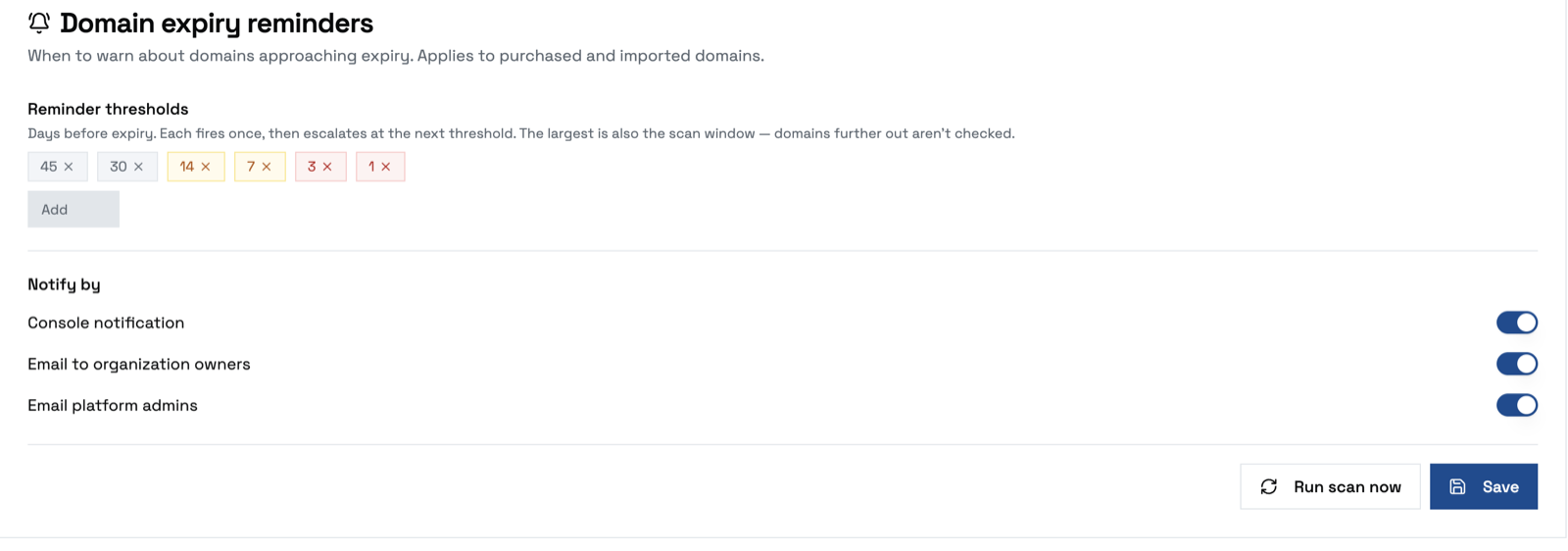
The largest threshold is also the scan window — domains further out than that aren't checked at all. Raise it if you want earlier visibility; there is no separate "warning days" setting to keep in sync.
Already-expired domains stay in the list rather than dropping out: they are the ones most in need of attention.
Reminders fire only when a domain crosses a new threshold, so changing these settings sends nothing immediately — the change takes effect at the next crossing. Equally, a customer whose domains are all healthy sees no Renewals due card at all; an absent card means nothing is due, not a broken page.
Under Notify by, choose where a reminder goes:
| Switch | Effect |
|---|---|
| Console notification | Writes the per-domain warning to the operator log — one line per domain, so a domain three days out isn't buried behind one forty days out. |
| Email to organization owners | Emails the owners of the organization that holds the domain. Turn it off and no owner email is sent. |
| Email platform admins | Emails your platform administrators as well — useful when you want to see deadlines yourself rather than relying on the customer to act. |
Expiring domains with no owner
A mapping can outlive the application it belonged to — the app is deleted and the
domain row stays behind. Such a domain belongs to no organization, so nobody is
notified: it appears in no customer's Domains page and no owner email goes out.
The scan counts these separately (… · 2 with no owner) and logs each one. When
you see a non-zero count, either re-attach the domain to an application or remove
the mapping.
Customer domains and auto-renew
Admin → Domains → Expiry & renewals → Customer domains is a worklist, not a
full inventory. It opens on the domains that need attention — inside 45 days,
held at a registrar you can't renew from, or belonging to no organization — with
a count (2 need attention · 9 total) and a Show all toggle for the rest.
Each row carries its expiry, days remaining and registrar, and lets you turn the
registrar's own auto-renew on or off.
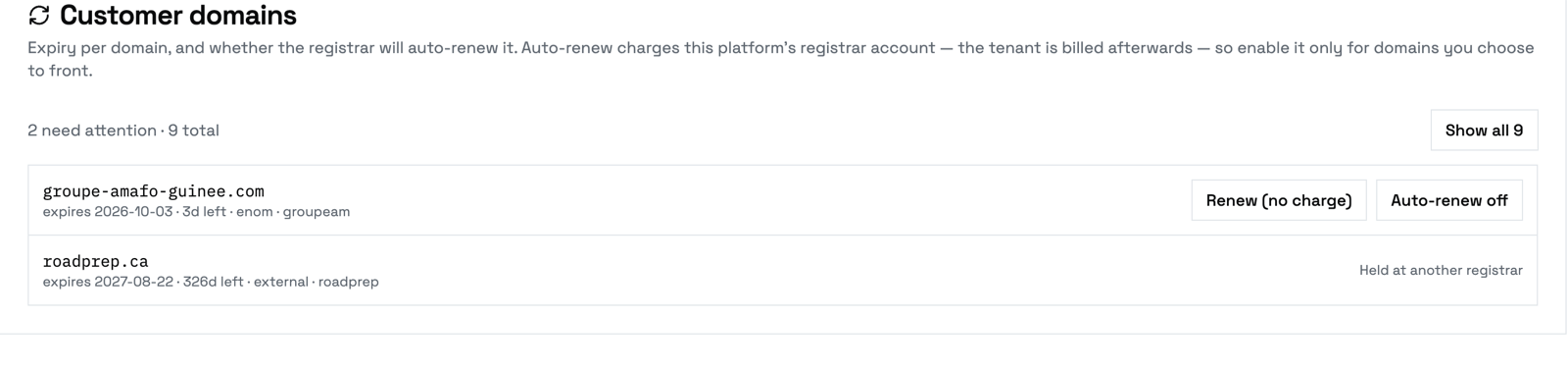
Registrar auto-renew charges the platform's registrar account; the tenant is billed afterwards. That is why this is an operator control and not a tenant toggle — turn it on only for domains you're willing to front.
- Only domains held at your configured registrar can be controlled here. Anything else shows Held at another registrar.
- The stored flag is written only after the registrar accepts the change, so what you see keeps meaning "what the registrar says", and the next daily refresh re-reads it regardless.
- Namecheap has no auto-renew API. Toggling it there fails with a clear message; set auto-renew in Namecheap's own control panel instead.
Domains held elsewhere
When a domain's expiry came from the public registry rather than your registrar, the platform has no credentials for it. It is shown and warned about, but:
- the customer sees Registered elsewhere — renew with your registrar instead of a Renew button, and
- a renewal checkout is refused server-side even if one is attempted.
This is deliberate: the payment would succeed and the registrar step would then fail, leaving a customer charged for a renewal that never happened.
Registrar Configuration

The Registrar section summarises itself when collapsed — which provider is active and the prepaid balance on it, e.g. enom · active · 101.00 available — so you can see whether there is credit to register or renew a domain without opening the section. The balance loads just after the page, so the rest of the page never waits for the registrar to answer.
kuploy-cloud supports two domain registrar backends. Configure one or both in Admin → Domains.
Supported Registrars
| Registrar | API | Use Case |
|---|---|---|
| Namecheap | XML API | Most common, requires IP whitelisting |
| Enom | Reseller XML API | Reseller accounts |
Setting Up Namecheap
- Go to Admin → Domains
- Scroll to Namecheap Integration
- Fill in:
- API User — Your Namecheap username
- API Key — Generate at Namecheap API Access
- Username — Usually same as API User
- Client IP — Your server's public IPv4 address
- Toggle Sandbox Mode for testing (uses
api.sandbox.namecheap.com) - Click Save Namecheap Configuration
- Click Test Connection to verify
You must whitelist your server's IP address in your Namecheap account settings for API access to work. The Client IP is also used as the DNS A record target when domains are purchased.
Setting Up Enom
- Go to Admin → Domains
- Scroll to Enom Integration
- Fill in:
- Reseller UID — Your Enom reseller account UID
- Password — Your Enom reseller password
- Toggle Sandbox Mode for testing (uses
resellertest.enom.com) - Click Save Enom Configuration
- Click Test Connection to verify
Choosing the Active Registrar
When both registrars are configured, an Active Registrar card appears. Click the provider button to set which registrar handles new domain searches and purchases.
- Existing purchased domains retain their original provider
- The
registrar_providercolumn tracks which registrar was used for each domain - Switching the active registrar only affects new operations
Security
All registrar credentials are encrypted at rest using AES-256-GCM encryption. Credentials are never logged or exposed in API responses — only masked values are shown in the UI.
Managing DNS Records
For each purchased domain, DNS records can be managed directly from the dashboard:
- Go to Admin → Purchase Domains (admin) or My Domains (user)
- Find the domain in the purchased domains list
- Click DNS to open the DNS management dialog
- Add, edit, or remove records (A, AAAA, CNAME, MX, TXT)
- Click Save Records to apply changes
Saving DNS records replaces all existing records for the domain at the registrar. Make sure to include all records you want to keep when editing.
Auto-Configured DNS
When a domain is purchased, two records are automatically created:
| Record | Type | Value |
|---|---|---|
@ | A | Your server's public IP |
www | CNAME | The purchased domain |
If automatic DNS configuration fails (e.g., registrar API timeout), it's logged as a non-fatal warning. You can configure DNS records manually via the dialog.
API Integration
For programmatic domain management, see the Domain API Reference. The API supports:
Subdomain operations:
- Check availability
- Reserve subdomains
- Provision DNS records
- Release subdomains
- List subdomains
Custom domain operations:
- Register custom domains
- Remove custom domains
- List custom domains
Purchased domain operations:
- Search domain availability (public, no auth required)
- Check registrar configuration status (public)
- Get plans with domain purchase feature (public)
- Purchase domains (plan-gated)
- List purchased domains
- Get/update DNS records
- Get domain info (status, expiry)
Troubleshooting
Domain Search Returns No Results
- Verify a registrar is configured in Admin → Domains
- Check the registrar connection with Test Connection
- Ensure the domain name is valid (at least 3 characters)
"Domain purchasing requires an eligible plan"
Neither your platform license nor the organization's plan grants domain purchase. Check both:
- Your platform plan — domain purchase is an Enterprise feature; confirm the tier on your Admin dashboard
- The org's plan — either move the org to a plan with Domain purchase on, or turn it on for their current plan at Admin → Plans. Confirm their subscription is active, not an abandoned checkout.
"Upgrade Required" after server restart
The /domains page shows an upgrade prompt even on a licensed instance. The instance restores its license state from durable storage on its own, so this normally clears itself. If it doesn't, the instance has no usable license data yet — click Retry Sync on the Admin dashboard, or wait for the next automatic sync.
A domain order failed after the customer paid
registration_failed and renewal_failed mean exactly one thing: the payment
succeeded and the fulfilment failed. The money is already collected, so the
job is to finish the order, not to pay for it again.
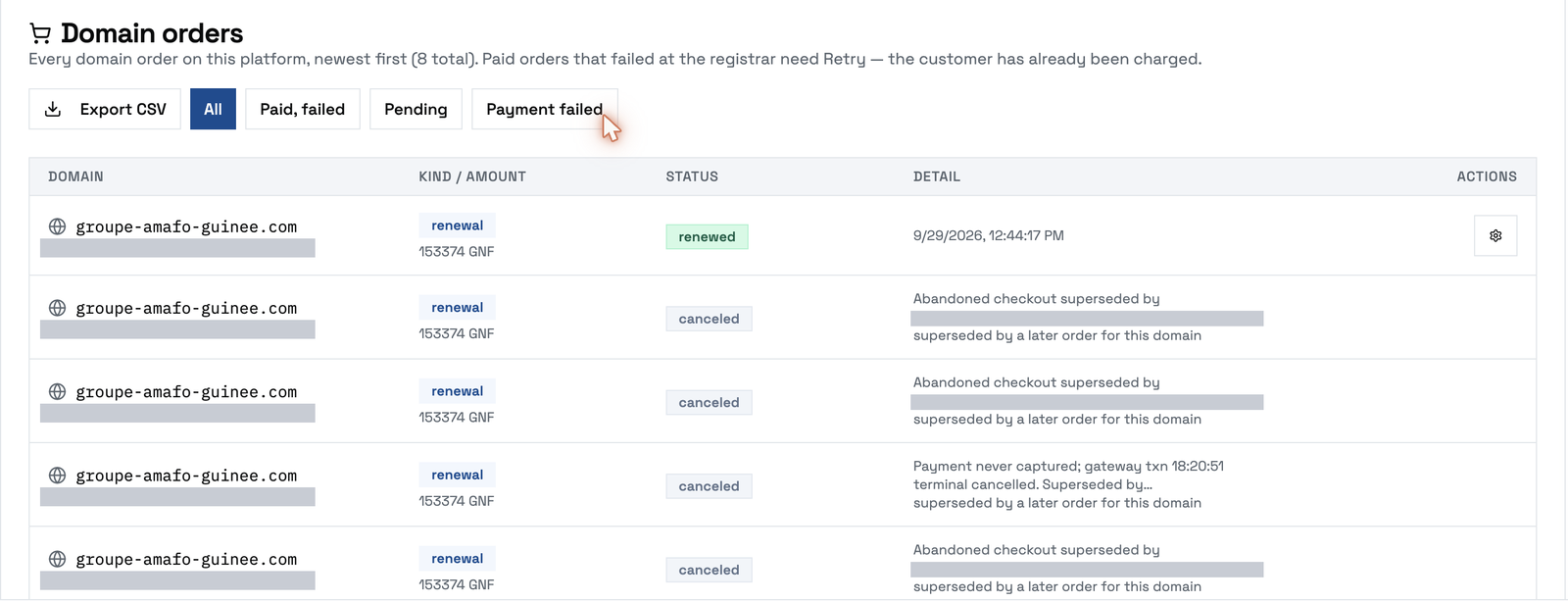
Use Retry, on Admin → Purchase Domains → orders. It re-runs the
registrar call against the payment already taken and flips the order to
registered / renewed when it succeeds; nothing is charged again. If the
registrar had in fact succeeded before the failure, Retry notices the domain is
already registered and just corrects the order's status instead of registering
it twice.
That button is on a different page — the Customer domains card under Expiry & renewals — and it does the opposite thing: it comps the renewal, so your registrar account pays and nothing is collected. On an order the customer has already paid for, it makes you absorb a cost you were paid for, and the paid order stays failed. Keep it for domains you deliberately front.
The two actions live on different pages, which is what makes the mistake easy: the failure is visible where the domain is, and the fix is where the orders are.
The underlying rule generalises: payment and fulfilment are separate steps. A
failed order means fulfilment needs retrying, not payment. An order whose
payment failed reads payment_failed instead, and there is nothing to retry —
the customer simply pays again.
An empty orders list means nothing has failed. That is the normal state, not a broken page.
A paid renewal still shows as due
A renewal that completes through the platform reads the new expiry back from the registrar and writes it immediately, clearing the reminder escalation — so the domain leaves the Renewals due card at once. A domain still listed means the renewal didn't complete through the platform, which is not the same as not happening at all.
- Check the registrar's own record for the domain first.
- If the registrar shows the new term, the renewal happened outside the platform (renewed directly, or registrar auto-renew). The daily refresh will pick it up — note that it skips any domain checked within the last 24 hours, so Run scan now won't always move the date today.
- Only if the registrar shows the old term is the renewal genuinely outstanding.
Never take a second payment before step 1.
DNS Setup Fails After Purchase
This is non-fatal — the domain was purchased successfully but DNS auto-configuration failed. Use the DNS dialog to set records manually.
"Server IP not configured"
The Namecheap Client IP field is empty. Go to Admin → Domains → Namecheap Integration and set your server's public IP.
Enom API Errors
- Verify UID and password are correct
- Check if sandbox mode is toggled correctly
- Ensure your Enom reseller account is active and has sufficient balance