The Org Agent
The Org Agent button in the panel's sidebar appears once your organization's agent is provisioned (organization admins provision it under Settings → AI → Org Agent; on some plans it is provisioned for you).
Your organization's plan must include the AI assistant feature. Without it, provisioning fails with The AI assistant is not included in this organization's plan. That rules out the obvious way to try the agent safely: a throwaway organization cannot hold one, and an agent only ever deploys into its own organization. Use a throwaway project inside an entitled organization instead.
Setting up Admin → AI does not create an org agent. That is the operator stocking the model gateway with provider keys; this page is the agent itself. Both are needed, in that order. See AI (operator setup).
The agent runs in its own isolated environment per organization and holds two narrowly scoped credentials: one that lets it call models (through the same plan-capped lane as Platform AI), and one that lets it reach your organization's projects, applications, and deployments through the platform API. Nearly everything it does is a read. The one exception is deploying a template from the marketplace — only into its own organization, and only after you confirm; see Deploy a template by chat. It cannot see other organizations and cannot reach the internet.
An agent keeps the tools it was built with. One provisioned before template deployment existed stays read-only until you re-provision it.
On paid Claude models the agent's system prompt is prompt-cached by the gateway (see Prompt caching), so the repeated prefix of a multi-step tool-call turn is billed at the cache-read rate rather than full price.
Conversations are request/response rather than streamed — on the free tier the models run on CPU, so a reply can take up to a minute; the panel says so while it works.
What you see when you open it
An empty panel asks "What do you want to put online?", with four taps that start the conversation for you:
| Tap | What it sends |
|---|---|
| A shop | I want to sell my products online. |
| Online classes | I want to teach classes online. |
| A website | I want a website for my business. |
| Something else | I'm not sure what I need yet — help me choose. |
They are a starting point, not a menu: type anything instead.
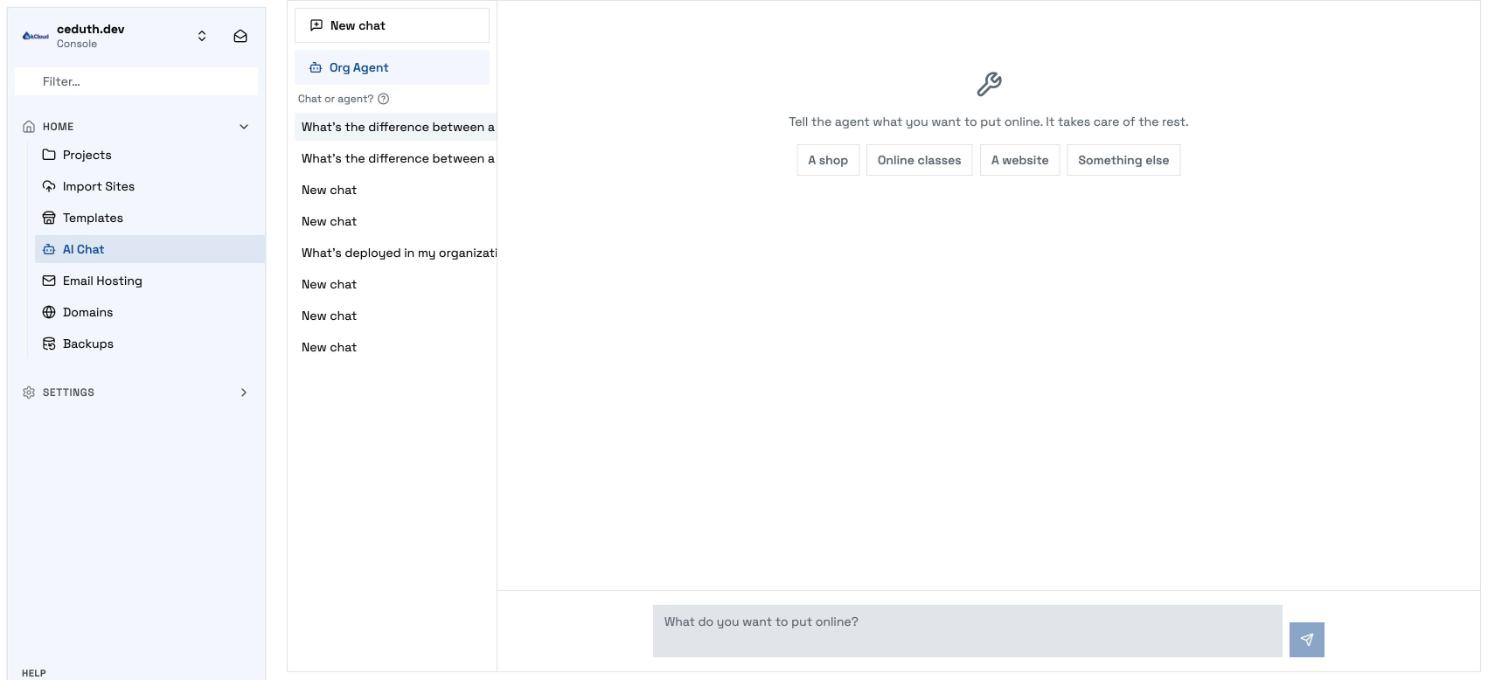
The taps and the opening line belong to the Org Agent, not to AI Chat. Until your organization's agent is provisioned and running, the panel shows neither — so if you are looking for them and the panel is bare, the agent is what is missing.
Deploy a template by chat
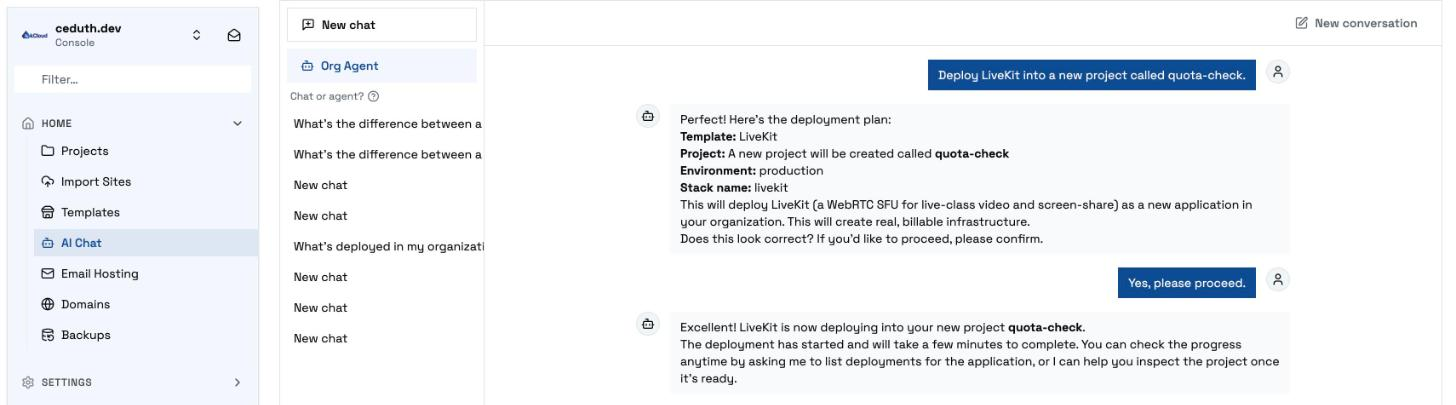
Ask the agent for something from the template marketplace and it can deploy it for you. It takes three turns: you ask, the agent answers with a plan — which template, which project, what it will create — and nothing is built until you say yes.
That confirmation is held server-side and spends on use. The agent cannot confirm on your behalf, and the same plan cannot be redeemed twice.
The project does not have to exist first — name one that does not and the agent creates it as part of the plan. Nothing is created until you confirm, the new project included.
- Only the Org Agent has this tool. A personal MCP token does not: the tool is absent from the list your editor sees, and refused if called by name.
- It deploys into its own organization, never another.
- Your plan's allowances apply, the same as building by hand — see Deploy a template. Paid templates still need their entitlement; who asks changes nothing about what your plan includes.
- It usually asks you nothing. Every template in the catalogue has defaults, and leaving a domain blank gives you a free address. A template declaring an input with no default is the case where the agent comes back with a question.
- A project it creates still counts. It deploys into that project's production environment, and the project counts against your plan's allowance like any other — an organization already at its limit is refused here exactly as it would be in the dashboard, though not as legibly. In the dashboard that refusal answers a button you just pressed. In a conversation it arrives mid-turn, and the agent may explain it or may simply try something else, so you can meet the consequence without being told the cause. If a deploy quietly becomes something smaller, ask whether you are at a limit.
Two outcomes worth recognising, whatever words the agent puts them in:
- It shows you the plan again instead of building. Something changed since the first plan, so your agreement no longer matches what would be built. Read the new plan rather than skimming it — it is not the same one.
- It tells you the thing already exists. Your yes was already acted on, and what you are looking at is that first deployment, not a second. Ask about its state instead of agreeing again.
Neither is an error, and neither will use these words: the agent is told what happened and explains it to you in its own, in your language.
Running the agent on your own key. By default the agent uses the platform's models on your plan. An organization admin can instead run it on one of your organization's own AI providers (the ones added under Settings → AI): pick it as the agent's model under Settings → AI → Org Agent and provision. The agent keeps the same locked-down tools and isolation; only the model changes. Usage on your own key is billed by your provider and does not count against your plan's AI spend cap.
Providers with an OpenAI-compatible API are supported: OpenAI, Anthropic, Mistral, DeepInfra, Perplexity, and custom OpenAI-compatible endpoints. If you change that provider's key, provision the agent again to pick it up.
Step by step: run the agent on your own provider
An organization owner or admin does this once:
- Open Settings → AI and click Add AI. Fill in Name, API URL (your provider's OpenAI-compatible base URL, for example
https://api.openai.com/v1orhttps://api.anthropic.com/v1), API Key and Model, and save. - On the same page, in the Org Agent card, open Agent model and pick that provider. Providers marked (not OpenAI-compatible) can't be chosen.
- Click Provision, or Re-provision if the agent already exists.
- Check it worked: the card's Status reads running and the model reads your provider. Then open the
/aipanel, choose Org Agent, and ask "what's deployed right now?".
Only owners and admins can add, edit or delete providers; members pick from them when starting a chat. If you change a saved provider's API URL, enter its API Key again before loading its models — the stored key is only ever sent to the URL it was saved with.
To go back to the platform's models, pick Platform AI (your plan) and click Re-provision. Tear down removes the agent and revokes its credentials; your providers are kept.