Billing & Usage
The Billing page at kuploy.app/billing is your single pane of glass for managing your platform subscription, monitoring resource consumption, upgrading plans, and reviewing invoices.
This page covers your billing with kuploy.app — the platform subscription you pay. For setting up billing that your end users pay to you, see Cloud Billing Setup.
Accessing Billing
- Sign in to kuploy.app
- Click Billing in the top navigation bar
Current Plan
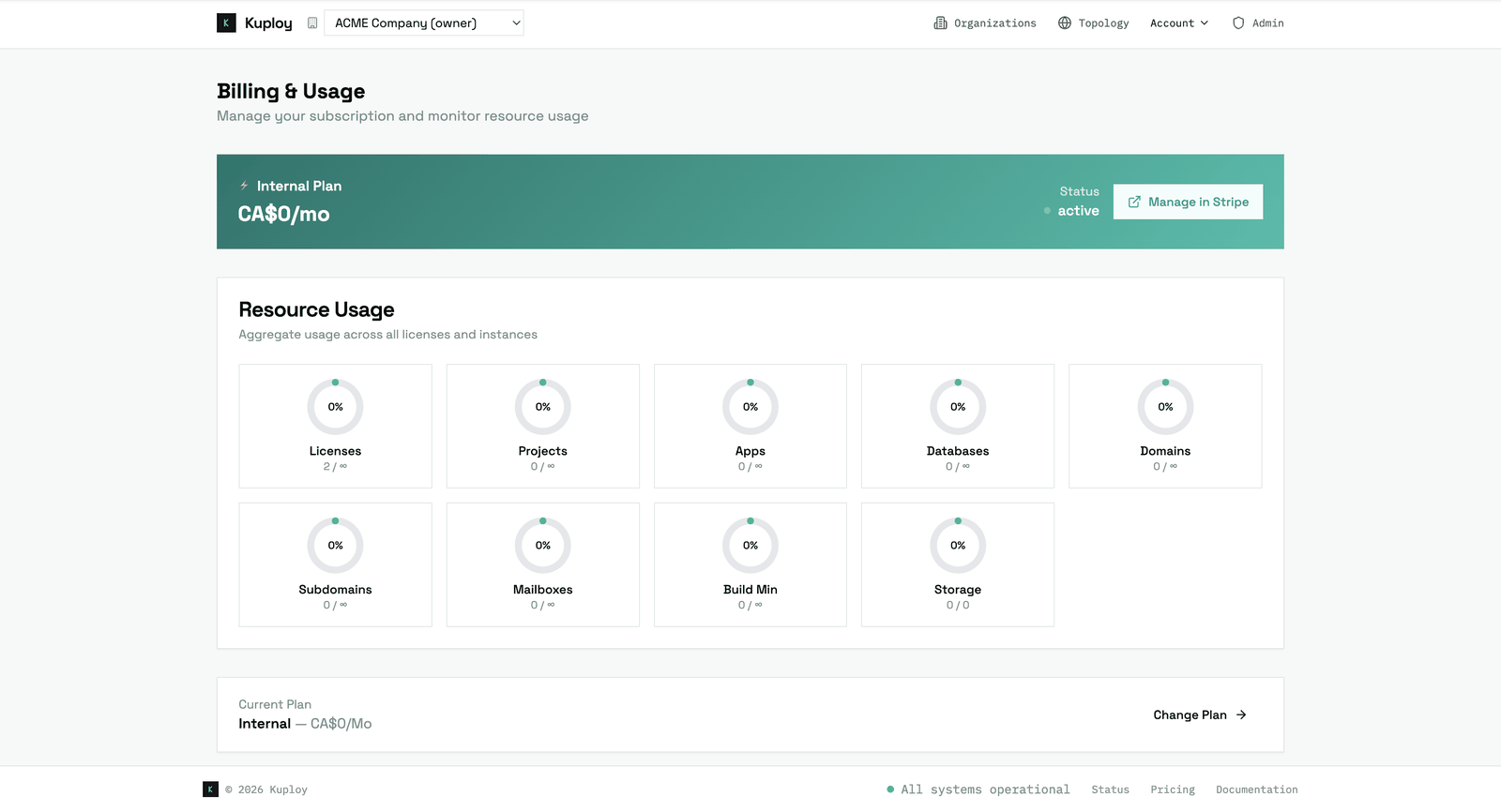
The plan banner at the top shows:
| Field | Description |
|---|---|
| Plan name | Your current tier — see Plans & the two layers |
| Price | Monthly rate (or custom negotiated price for Enterprise) |
| Status | active, trialing, past_due, or canceled |
| Trial end | If trialing, when the trial expires |
| Renewal date | When your subscription renews (if not trialing) |
Trial Management
If you're on a free trial:
- A Trial badge appears next to your plan name
- The trial end date is displayed
- Click Pay Now to end the trial early and start billing immediately
- At trial end, you'll be prompted to add a payment method or your instance will be frozen
Resource Usage
The usage section shows aggregate consumption across all your licenses and instances as circular progress rings:
| Metric | What It Tracks |
|---|---|
| Licenses | Active licenses vs. plan limit |
| Projects | Total projects across all instances |
| Apps | Total deployed apps |
| Databases | Total provisioned databases |
| Domains | Total domains (custom + purchased) |
| Subdomains | Free *.kuploy.app subdomains |
| Build Minutes | Monthly build minutes consumed |
| Storage | Total storage used (displayed in GB) |
Usage Indicators
Each ring is color-coded:
- Green — below 80% of limit
- Yellow — between 80–99% of limit
- Red — at 100% (limit reached, resource creation blocked)
If multiple rings are yellow or red, consider upgrading your plan to increase limits. Click Upgrade on a higher-tier plan card below the usage section.
Upgrading Your Plan
The Available Plans section shows all tiers side by side:
- Review the limits and features of each plan
- Click Upgrade on the plan you want
- You'll be redirected to Stripe Checkout to complete payment
- Your limits are updated immediately after payment
For Enterprise plans, click Contact Sales to discuss custom pricing and limits.
For details on what each plan includes, see Licensing & Platform Plans.
When upgrading mid-cycle, you're charged a prorated amount for the remainder of the billing period.
Downgrading Your Plan
- Go to Billing at kuploy.app
- Click Manage Subscription
- Select a lower plan
- Downgrade takes effect at the end of your billing period
Before downgrading, ensure your aggregate usage across all instances is within the new plan's limits. You may need to remove resources to fit within the lower limits.
AI credit
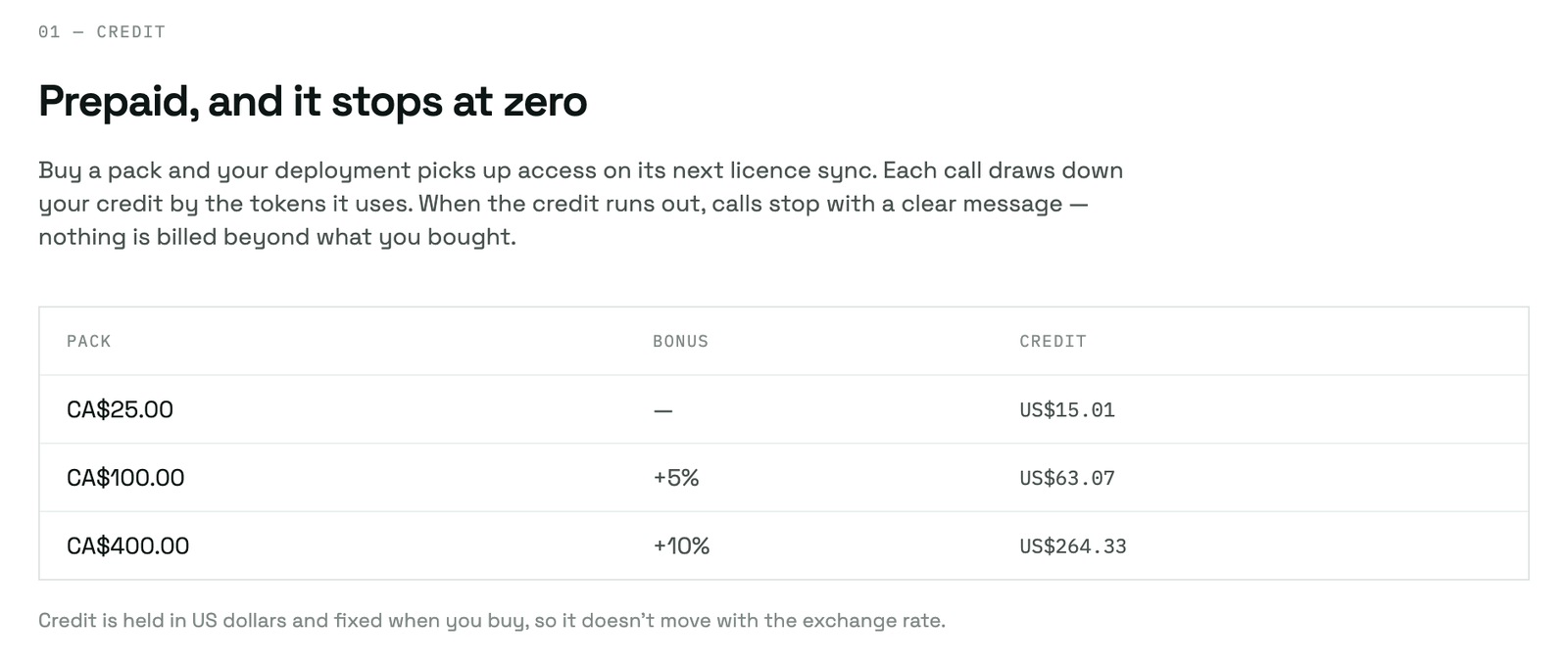
The AI features in your platforms can run on Claude using prepaid credit you buy on kuploy.app, instead of a model-provider account of your own. The packs on sale, with the credit each one buys, are listed on kuploy.app/ai; your balance is in the AI credit section of the Billing page.
Buy credit
-
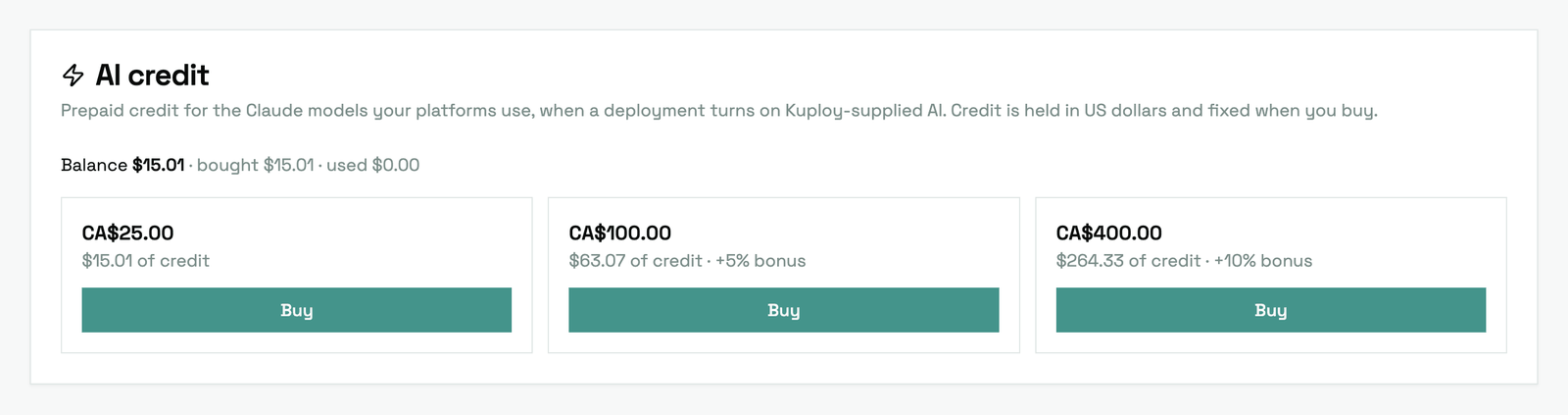
Go to Billing at kuploy.app. In AI credit, click Buy on a pack — you're taken to Stripe Checkout.
-
The credit is added to your account as soon as the payment goes through — the card's balance shows it straight away.
-
Turn it on in each deployment that should use it: Kuploy Cloud or GrowthOps.
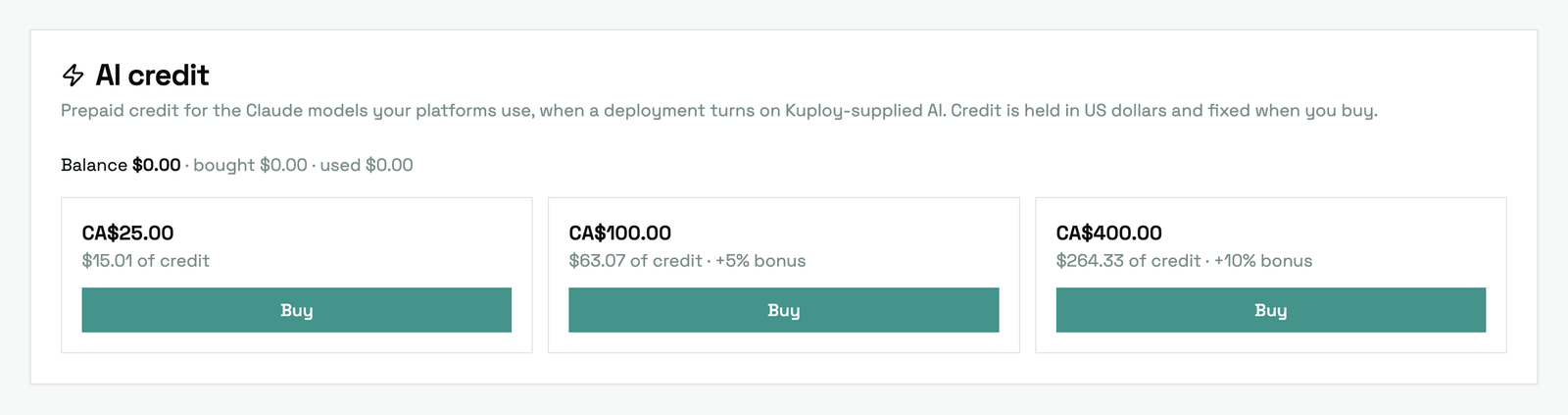
Buying a pack changes nothing by itself. Each deployment keeps using what it uses today until you turn Kuploy-supplied AI on in its admin.
How credit works
| Price and credit | Packs are priced in CAD. The credit a pack buys is held in US dollars and fixed when you buy, so it doesn't move with the exchange rate. A pack may include bonus credit — kuploy.app/ai shows how much. |
| How it's used | Each model call draws down your credit by the tokens it uses. Prompts and answers are never stored — only token counts and cost. |
| At zero | Calls are refused with a message that there isn't enough Kuploy AI credit left. Nothing is billed beyond what you bought; buy another pack and they resume. |
| Refunds | If a purchase is refunded, the matching share of that pack's credit is removed — only credit you haven't spent yet. |
| Your own key | Keeps working. Wherever one is set, it's used instead of your credit. |
Payment Method
Click Manage Payment Methods to open the Stripe Customer Portal where you can:
- Add or update credit/debit cards
- Set a default payment method
- View upcoming charges
Billing History
The invoices section lists your recent invoices with:
- Invoice number and date
- Amount charged
- Download link for the PDF invoice
All invoice management (refunds, disputes) is handled through Stripe. Click Manage in Stripe in the plan banner to access the full Stripe portal.
Stripe Integration
All payment processing is handled by Stripe. Kuploy never stores your card details — Stripe manages that securely. The following actions all route through Stripe:
| Action | Flow |
|---|---|
| Upgrade plan | Stripe Checkout session |
| Manage payment | Stripe Customer Portal |
| Download invoice | Stripe-hosted PDF |
| End trial early | Stripe subscription update (or Checkout if no payment method) |
Billing Period
Your billing period is shown in the usage data. Build minutes are automatically reset to zero across all your instances when a new billing cycle starts (triggered by a successful invoice payment from Stripe). Storage is not reset — it reflects current disk usage.
If your account enters past_due status:
- Stripe retries the charge automatically (up to 3 attempts)
- A warning banner appears in the dashboard
- After the retry window, the account may be suspended
- All instances continue to operate in read-only mode during the grace period
Contact support if you need to resolve a payment issue.
Related Pages
- Licensing & Platform Plans — Plan tiers, limits, and features
- Cloud Billing Setup — Setting up billing for your end users
- Organizations — View per-org usage across instances
- Revenue Tracking — MRR tracking and revenue snapshots
- Billing Notifications — Usage and payment alerts